
Portal.id.cps Login Guide: Access CPS Accounts in 2026
You need to get into your CPS account, but the login page is confusing, your password is not working, or you are not even sure which URL to use. You are not alone. Every year, thousands of students, parents, and staff across Chicago Public Schools run into the same problems with portal.id.cps. In May 2026, this guide gives you the complete, step-by-step process to sign in, claim a new account, reset a forgotten password, and fix every common login error fast.
Portal.id.cps is the identity management portal for Chicago Public Schools. It sits at portal.id.cps.edu and handles your digital identity for the entire CPS system. Whether you need to access Aspen for grades, Google Workspace for schoolwork, or your CPS email, the journey starts here. This guide covers every step, every error, and every account type in one place.
What Is Portal.id.cps?
Portal.id.cps is the centralised identity and access management portal that Chicago Public Schools uses to manage every digital account across the district. The full web address is portal.id.cps.edu. When you open it, you see a RapidIdentity login screen, which is the identity platform CPS uses to verify who you are before giving you access to connected tools and services.
CPS is the fourth-largest school district in the United States, behind New York, Los Angeles, and Miami-Dade County. For the 2025-26 school year, interim CPS CEO Macquline King announced an official enrollment of 316,224 students across 630 schools, according to WTTW’s September 2025 report. That is a massive number of people who depend on portal.id.cps working correctly every single day.
What RapidIdentity Does
RapidIdentity is the identity platform that powers the portal.id.cps login screen. It is a product of Identity Automation, a Texas-based education technology company. RapidIdentity handles the authentication process, meaning it checks your username and password, verifies your identity, and then passes you through to whichever CPS service you need. You never have to log into each app separately once you are authenticated through portal.id.cps.
What the Portal Connects To
Portal.id.cps acts as the front door to the broader CPS digital ecosystem. Once logged in, users can reach:
- Aspen, the student information system for grades, attendance, schedules, and teacher communication
- Google Workspace for Education, which includes Google Classroom, Gmail, and Drive
- HMH (Houghton Mifflin Harcourt) learning platforms like Ed and ThinkCentral
- Microsoft tools used across CPS schools
- Any other district-connected application tied to your CPS credentials
Who Needs to Use Portal.id.cps
Three groups use portal.id.cps every school day. Each group has slightly different access, credentials, and support paths.
Students
Every CPS student has a portal.id.cps account. Students use it to access Aspen for their academic records, Google Classroom for assignments, and any learning platform their teacher uses. Student usernames follow a standard format: the first letter of the first name followed by the full last name. A student named Maria Gonzalez would use the username mgonzalez.
Staff and Teachers
CPS staff, including teachers, administrators, and support workers, also authenticate through portal.id.cps. For the 2025-26 school year, CPS reported 46,451 staff positions, including 23,979 teachers, according to Wikipedia’s updated CPS entry. Staff logs in using their CPS username and password. Staff who need password help are directed to the Password Management website at password.cps.edu, separate from the student reset path.
Parents and Guardians
Parents access the CPS Parent Portal through Aspen rather than directly through portal.id.cps. However, understanding the portal.id.cps system matters for parents because it is the same credential infrastructure. When you help your child log in, you are working with this same system.
How to Log In to Portal.id.cps: Step by Step
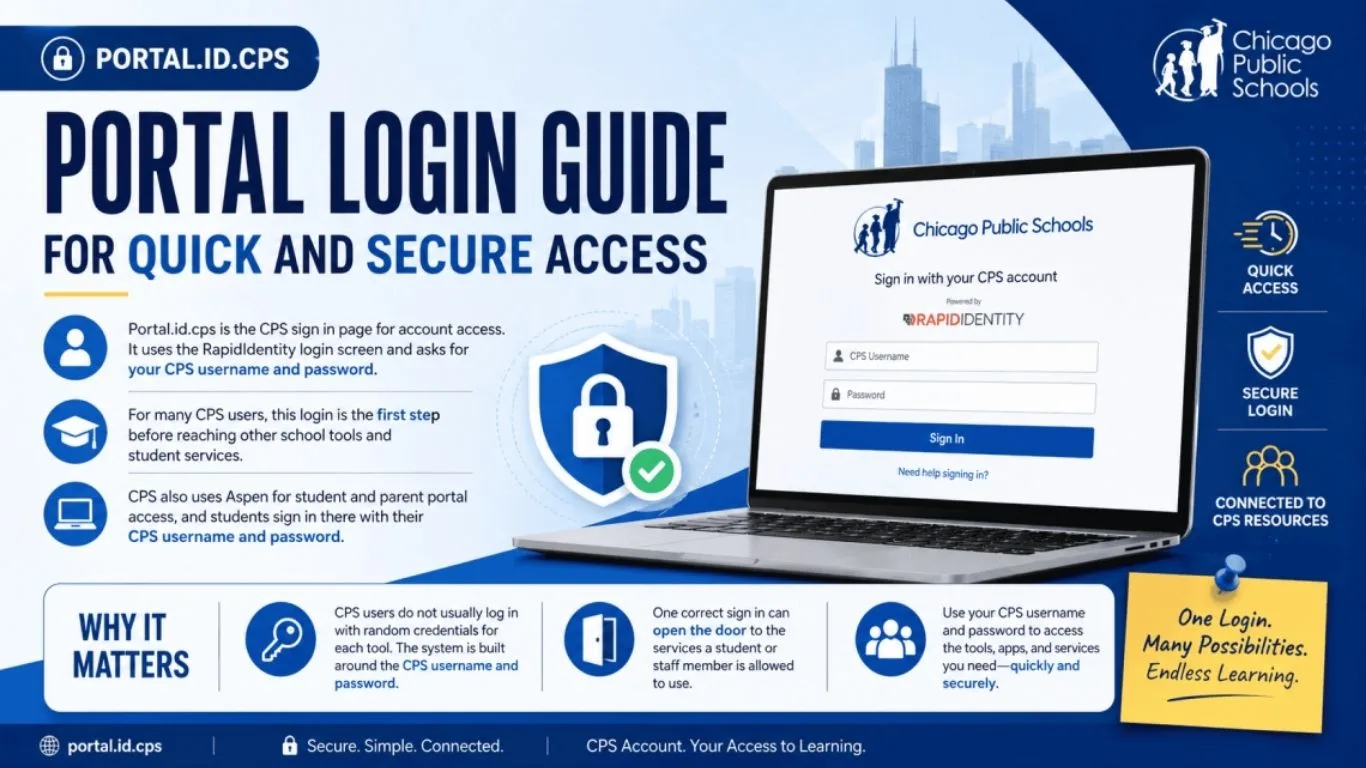
This process applies to existing users whose accounts are already claimed and active.
Step 1: Open the Right URL
Go to portal.id.cps.edu in your browser. Do not search for it and click a random result. Type the address directly to make sure you land on the official page. This protects you from lookalike phishing sites.
Step 2: Enter Your CPS Username
Type your CPS username in the username field. Do not type your full email address. The CPS sign-in page at secure.cps.edu specifically says to enter only the part of your email to the left of the @ symbol. If your CPS email is mgonzalez@cps.edu, your username is mgonzalez.
Step 3: Enter Your Password
Type your CPS password carefully. Check that capslock is off. Make sure there are no extra spaces before or after the password. Many login failures come from these two simple issues.
Step 4: Complete Multi-Factor Authentication If Required
CPS staff accounts use multi-factor authentication (MFA). Staff have OneLogin MFA configured, which sends a notification to a linked mobile device when someone tries to sign in. CPS also uses Duo Security for certain accounts. If prompted, approve the login on your registered device. If you have not set up MFA yet, contact your school’s technology coordinator.
Step 5: Access Your Services
After a successful login, you can navigate to whatever CPS service you need. The portal connects you to the apps your account is authorised to use based on whether you are a student or staff member.
Read more: Serlig Explained: Meaning, Uses, and 2026 Digital Trends
How to Claim a New CPS Account for the First Time
New students and new staff cannot log in until they claim their accounts. This is the most common reason a first-time user cannot get in.
What You Need to Claim Your Account
For students, you need:
- Your full legal first name
- Your CPS Student ID number (found on any school document or enrollment paperwork)
- Your date of birth
For staff, the account claim process is typically handled during onboarding with IT. New staff should contact their school’s technology coordinator or the CPS IT Service Desk if they have not received account setup instructions.
Where to Claim Your Account
Go to cps.edu/portal and follow the prompts to set up your account. Lane Tech’s student support page confirms that students can use their student ID number as their claim code. Once the account is claimed, you set a password and complete any security setup steps before your first real login.
What You Can See and Do After Logging In
Students: What the Portal Unlocks
After signing in through portal.id.cps, students can reach their full academic profile through Aspen. The student portal shows:
- Current grades for every class
- Attendance records and any absences
- Class schedules and assigned teachers
- Homework and assignment details
- Fees and outstanding balances
- Health compliance requirements
CPS confirms the portal works across smartphones, tablets, laptops, and desktop computers. You do not need a specific device or operating system.
Parents: What You Can Access Through Aspen
Parents use Aspen through a separate parent login but on the same credential infrastructure. Through the parent portal, families can:
- Check grades and attendance in real time
- View assignments and class schedules
- Message teachers directly through the system
- Report absences using the E-Absence tool
- Make online payments for fees
- Manage student information and emergency contacts
CPS also allows parents to link multiple children under one parent account. If you have two students in the district, one login shows both profiles.
Staff: What the Portal Connects To
Staff accounts connect to HR tools, payroll information, CPS policies, Google Workspace, and the full suite of teaching platforms their role requires. The CPS staff portal page also provides access to professional development resources, RISE performance management tools, and REACH evaluation systems.
How to Reset a Forgotten CPS Password
The reset path is different depending on your account type. Using the wrong reset route is one of the most common frustrations users hit.
For Students
Go to password.cps.edu or click the “Forgot my Password” link on the portal.id.cps login screen. You may be asked to answer security questions you set up when you first claimed your account. If you do not know those answers or never set them up, contact your school’s front office or technology coordinator. Students cannot use the parent portal password reset route.
For Staff
CPS staff are directed to the Password Management website at password.cps.edu. The CPS sign-in page confirms this: if you do not remember your password, visit the Password Management website and follow the steps to reset it. Staff can also call the CPS IT Service Desk at (773) 553-3925 for help.
For Parents (Aspen Accounts)
Parents can reset their Aspen password directly from the Parent Portal using the Password Reset button. You need your Login ID and the email address associated with your account. CPS confirms that this reset process sends a reset link to the parent’s registered email. If the email address on your account is wrong or outdated, you need to contact your child’s school to update it before the reset will work.
What Is Portal.id.cps? Direct Answer
Portal.id.cps is the identity and access management portal for Chicago Public Schools. Found at portal.id.cps.edu, it uses a RapidIdentity login screen to verify CPS usernames and passwords. It connects students, staff, and families to district tools, including Aspen, Google Workspace, and learning platforms. New users must claim their account before their first login.
The Mistake Most CPS Users Make That Locks Them Out
Here is something the competitor pages skip entirely: the single most common login failure at portal.id.cps is using the wrong username format, and it is completely avoidable.
Many students and staff type their full CPS email address, such as mgonzalez@cps.edu, into the username field. The system rejects it. The correct input is just the username part: mgonzalez. The CPS official sign-in instructions are clear about this, but the error page does not tell you what went wrong, so users assume their password is wrong and start resetting it unnecessarily.
The second most common mistake is saving a password in the browser and never updating it. When a student changes their CPS password, the browser still autofills the old one. The login fails, the student thinks the account is broken, and they waste time troubleshooting something that was solved with one tap on the keyboard.
Before you try resetting your password, check these three things first:
- Are you entering just the username, not the full email?
- Is your browser autofilling an old saved password?
- Is Caps Lock turned on?
In most cases, one of these three things is the problem. Fix it, and you are in within 30 seconds.
Is Portal.id.cps Safe to Use?
Portal.id.cps is designed with multiple security layers. CPS uses Duo Security for staff MFA, and starting in April 2026, CPS expanded multi-factor authentication to its Supplier Portal as well, signalling a district-wide push toward stronger account security across all user types. The RapidIdentity platform handles authentication using industry-standard security protocols.
To keep your account safe, follow these rules:
- Never share your CPS username or password with anyone, including friends and family.
- Always sign out after using a shared or school-owned computer.
- Treat any email claiming to be from CPS and asking for your password as suspicious. Official CPS systems never ask for your password by email.
- Do not use the same password for your CPS account that you use on personal websites.
- If you receive an MFA approval request that you did not trigger, deny it immediately and contact IT support.
Common Portal.id.cps Errors and How to Fix Them
| Error | Most Likely Cause | Fix |
| “Invalid username or password” | Wrong username format or typo | Use username only, not full email; check Caps Lock |
| “Account not found.” | Account not yet claimed | Go to cps.edu/portal and claim the account first |
| Page does not load | Browser issue or network problem | Clear cache, try another browser, check internet connection |
| MFA push not arriving | Phone number or app not linked | Contact IT or the technology coordinator to re-link the device |
| Password expired | Password age limit reached | Use password.cps.edu to reset |
| “Access denied” after login | Wrong portal for your account type | Students use Aspen; parents use Parent Portal; staff use their work portal |
How Portal.id.cps Connects to Aspen
Aspen is the student information system that CPS uses to manage all academic records. Portal.id.cps and Aspen work together but serve different functions.
Portal.id.cps is the authentication gateway. It checks who you are. Aspen is the data platform. It holds your grades, attendance, schedules, and communication history. When you log in through portal.id.cps with your CPS username and password, those same credentials get you into Aspen.
Students log into Aspen at the Aspen student portal using their CPS username and password. Parents use a separate parent login with a parent-specific email and password. If a student forgets their Aspen password, they contact their school. If a parent forgets theirs, they use the Parent Portal Password Reset option.
CPS IT Support: When to Call for Help
If you have tried all the steps above and still cannot get in, these are the official support routes:
For staff, call the CPS IT Service Desk at (773) 553-3925. When you call, have ready your school ID or school name, your full CPS username and email, which platform you are trying to reach, and the exact error message you are seeing. The HMH support page for CPS Rapid ID logins confirms this number and these details.
For students, contact your school’s front office or technology coordinator. They can verify your account status, help reset challenge questions, or escalate to the district IT team if needed.
For parents with Aspen issues, contact your child’s school directly. They can verify and update the email address on file, which is often the root cause when a parent password reset does not arrive.
FAQ About Portal.id.cps
What is the URL for portal.id.cps?
The official URL is portal.id.cps.edu. This opens the RapidIdentity login screen for Chicago Public Schools. Always type this directly into your browser to avoid phishing pages.
Why does portal.id.cps say my username is wrong?
The most likely reason is that you are entering your full CPS email address instead of just the username. For example, enter mgonzalez rather than mgonzalez@cps.edu. The CPS sign-in instructions confirm to use only the username portion.
How do I claim a new CPS account for the first time?
Go to cps.edu/portal and follow the prompts. Students need their legal first name, CPS Student ID number, and date of birth. Complete the steps to set a password before attempting to log in for the first time.
Why is my portal.id.cps password not working?
Check for Caps Lock, extra spaces, and whether your browser is autofilling an old saved password. If none of those are the issue, go to password.cps.edu to reset it. Students who cannot answer their security questions need to contact their school.
Does portal.id.cps work on phones and tablets?
Yes. CPS confirms that its portal and connected services work across smartphones, tablets, laptops, and desktop computers. Use any updated modern browser for the best experience.
What is RapidIdentity at portal.id.cps.edu?
RapidIdentity is the identity platform made by Identity Automation that powers the portal.id.cps login screen. It handles authentication for all CPS users, checking credentials before granting access to connected district tools.
How do CPS staff reset their password?
CPS staff go to password.cps.edu, the official Password Management website. Staff can also call the CPS IT Service Desk at (773) 553-3925 for direct help. Provide your school name, full CPS username, the platform you need to access, and any error message you are seeing.
How do parents reset their Aspen portal password?
Parents click the Parent Portal Password Reset button on the Aspen login page and enter their Login ID and registered email address. If the email address on file is wrong, contact your child’s school to update it before the reset will work.
Why do students need to claim their account before logging in?
CPS creates student accounts when they enroll, but new accounts are inactive until the student completes the claim process to set a password and confirm their identity. You cannot log in to an unclaimed account even with the correct username.
What is Duo Security on portal.id.cps?
Duo Security is a multi-factor authentication (MFA) tool used by CPS to protect staff accounts. After entering your username and password, Duo sends a push notification to your linked mobile device. You approve it to complete the login. This second step stops unauthorised logins even if someone knows your password.
Conclusion
Portal.id.cps is the key to everything in the Chicago Public Schools digital system. In May 2026, with 316,224 students and over 46,000 staff across 630 schools depending on it daily, getting this login right matters. The three most important things to remember: always use just your username, not your full email; claim your account before your first login; and use password.cps.edu when you need a reset.
When login works, everything else works. When it does not, use the steps in this guide before calling support, and you will solve it in minutes rather than hours.
Your CPS account is your gateway to your education. Protect it, know how to recover it, and never let a login problem keep you out of what you need.
Learn more about Chicago’s school system at the Chicago Public Schools Wikipedia page.